
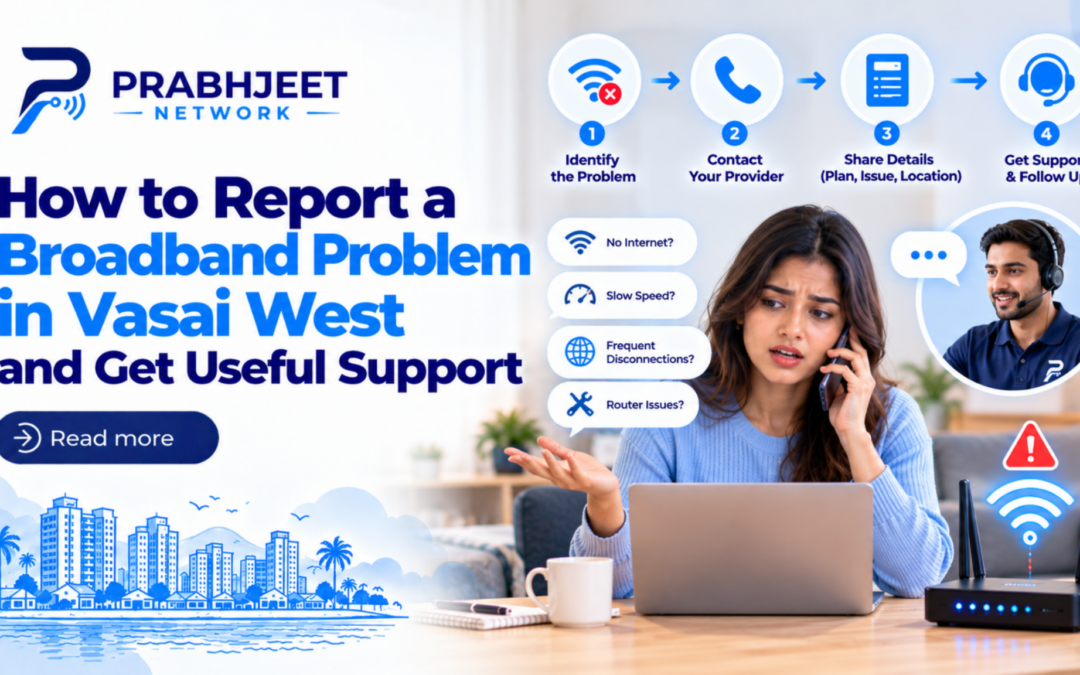
An issue with the internet is made more frustrating when you have to go over it again and again. One person inquires about the router, another asks for the customer number, and the initial issues get lost in the back and forth. Put together a clear report to make the process easier.
When reaching out to your broadband problem in Vasai West, try to report what you see instead of guessing at the technical issue. A few accurate facts will help the team determine what to look into and if they need more info or to come out to your location.
Begin With Your Account and Location
Keep at hand your customer identifier and registered contact info. When relevant include the building, wing and flat or office number in the location. This is to help the team which will tie your report in with the right service.
If you report on behalf of someone else, present that relationship and go through the provider’s verification process. We do not use public social media to pass out account info use only the methods of transmission they have verified. Public social media isn’t for giving out your passwords and private data.
Describe the Symptom Precisely

Tell your internet service provider in Vasai West if the connection is fully out or if it is intermittent which in turn may affect only a certain activity. A video call drop is not the same as a single website which doesn’t load.
Report when the issue started and if there is a pattern. If you recall a power outage, equipment move, or change in settings before that, note it down but do not say it caused the issue. We are more helpful with your reports when they are clear but leave the root cause open to investigation.
Explain Which Devices Are Affected
Check if another phone or computer is available and see which one it is. Report back what you see is the issue present in all devices, in only one, or in that particular room’s equipment. Keep your changes simple, don’t adjust multiple settings at once.
If a device uses mobile data for everything, be aware that what you are testing may not be accurate. Home connection performance isn’t proven by mobile data use. Report what you did exactly as you did it for support, don’t report out of context results.
Record Tests Without Overloading the Report
Your internet service provider in Vasai West may also do a speed test or a comparison of services. Include the test time, device and type of connection in particular if you are comparing wireless to Ethernet results.
Send some key screenshots instead of a large set without labels. Report on what was going on during the test also at the same time which other activities the house was seeing. We put in this info because it helps the team to better interpret the results instead of looking at a single number which is put forth as the full picture of the issue.
Describe Equipment Lights Carefully
Upon request of support information on indicator lights is to be reported out including the label, color and if they are steady or flashing. We ask that where possible you include a picture. Different models have different indicators which is why we ask that you not guess what a color means.
Follow the given instructions for the installed equipment. Don’t hit the factory reset button if a restart doesn’t work. Ask what a requested action will do, especially if you are dependent on saved settings or can’t get the equipment to re connect.
Ask for a Reference and the Next Step

After bringing up the issue, put in a complaint which has a reference if available at your internet service provider in Vasai West. Also check what happens next and which medium will be used to issue updates.
If required we may need to go over access issues and also the put forth timing. Set expectations in line with what the team reports. A general supportive statement does not mean that we will fix everything at the same speed or at the same time for each issue.
Keep Follow-Up Messages Connected
When you follow up on a broadband problem in Vasai West, report which original issue you are addressing and what has changed. Note if the service was temporary, if the same symptom is persistent or if this has appeared in another device.
This is to avoid starting the explanation over from the base. Maintain your own brief up to date record of all calls, messages and checks. If the primary route doesn’t resolve your broadband problem in Vasai West, request the provider’s escalation process and the info which goes with it.
Frequently Asked Questions
Should I guess the cause when reporting a fault?
Report symptoms and observations first. You may bring up a possible trend but have the support team look into it before confirming it as the cause.
Is a screenshot of one speed test enough?
You’ll want to include details like when the issue happened, which device you used, where you were, and how you connected. The support team might ask for more specifics too, so be ready to share whatever else they need.
What should I save after making a complaint?
Keep the reference, report date, relevant issues and agree upon the next step. These notes make for better and more consistent follow up.
Make Your Report Useful
A full explanation may not lead to an instant repair but it can surely reduce confusion during investigation.
If Prabhjeet Network is your internet service provider in Vasai West, use their verified contact lines and present the relevant account info, symptoms and issues when you request help.
Reference links
1. TRAI – Telecom Consumer Complaint Registration and Grievance Redressal
https://www.trai.gov.in/faqcategory/complaint
2. Microsoft Support – Fix Wi-Fi Connection Issues in Windows
https://support.microsoft.com/en-us/windows/experience/connectivity-networking/fix-wi-fi-connection-issues-in-windows
3. Google Support – Test Internet Speed and Improve Wi-Fi Connection
https://support.google.com/googlehome/answer/6246634
4. Google Support – Troubleshoot Slow Internet and Wi-Fi Problems
https://support.google.com/googlehome/answer/6246489